
Any export will have its own dialog, sometimes with specific options, but most share the same basic interface, which is explained here.
Note: also remember that all exports can be done with the command line tools in the package, which is handy to automatize exports.
As an example, let’s export to AKG:
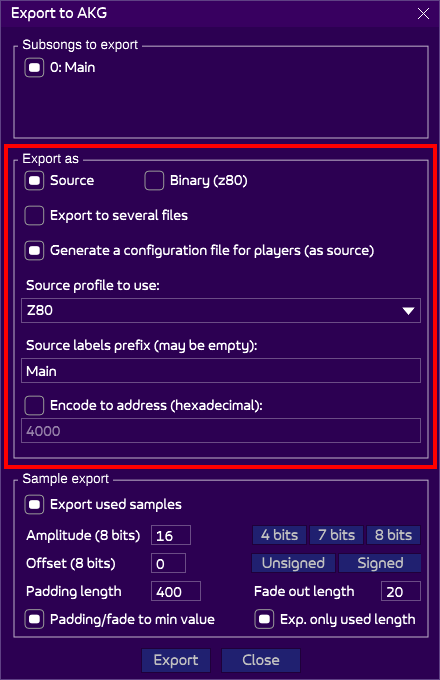
There are three parts, which may or may not be present on other exports.
The top one indicates what subsongs to export. You may want to export all of them, or only one. Some formats, such as AKY, only manage one subsong. AKG supports multiple.
The bottom one is for samples, which is explained here.
Which leaves the main and highlighted sections, “export as”.
The Export As section
There are basically two main ways to export, depending on your need, or more likely, your build chain:
- Source: an assembly code is generated, to be assembled with your favorite assembler.
- Binary: a single binary file, which you can then insert into a virtual disc, or in memory of an emulator, for example.
“Source” is more flexible, because it lets you assemble your music anywhere in memory when you include it to your project. “Binary” is static: your song will only work at the specific address location, which you must set. “Source” requires however more technical abilities, because you must assemble it by yourself. Also, “Binary” is only available for Z80, as AT3 embeds the assembler Rasm, and only this one.
Export as source
Let’s review the available options of this mode:
- Export to several files: when checked, each subsong will be written in its own file. This is useful to save memory. Image you compose 5 songs, one per level for your game. It is likely you want to have in memory only the song for the level where the player is (just like only the current level graphics set is loaded at one time). For this use-case, check this option and load the subsong in memory when needed. Only the Source export can use this option, and it may not be available for all formats.
- Generate a configuration file for players: when checked, a “configuration file” is generated (as a source) besides the exported song. By default, it is better to enable it, even if you don’t use it. The benefits are explained here: the file is used to optimize the player.
- Source profile to use: If exporting to source, you must indicate the syntax of the generated code. This has two positive aspects:
- You can export to any assembler out there (syntax may differ from an assembler to another, even if targeting the same CPU!).
- You can export to any CPU: 68000, 6502, etc.
The source profile is the same as the one selected in the namesake option. Note that changing it in this export window also changes the source profile for subsequent exports.
- Source labels prefix: When generating sources, you may want to add a prefix to all the generated labels. This is useful to avoid label clash if you later import several sources of songs. It could be anything, such as “MySong”, “Ingame_”, or empty not to have any prefix.
- Encode to address: When generating sources, you have the ability to set its address in memory (adding an “ORG” mnemonic in Z80). Most of the time, it is advised to disable this option and let the source that includes your music sets this, for more flexibility.
Export as binary
Selecting “binary” changes the interface with less options:
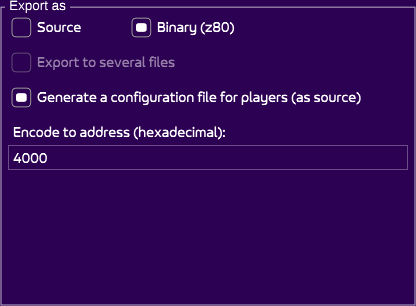
First of all, note that only Z80 binaries can be exported, not 68000 or other CPUs (to do so, export to source with the right source profile, and assemble the file with the assembler of your choice).
- Export to several files is not available.
- Generate a configuration file is explained above.
- Encode to address is mandatory and sets the address (in hexadecimal) at which the music must be loaded into memory.